
Automating review requests saves time and increases customer feedback by 300–500%. Here’s how you can set up a system that ensures every customer receives a timely prompt without manual effort:
- Pick a Platform: Use tools like Review Overhaul to automate SMS and email review requests, optimize your Google Business Profile, and manage responses. Plans start at $299/month.
- Integrate Business Systems: Connect Review Overhaul with your CRM, POS, or scheduling software through Zapier to automate requests based on triggers like completed appointments or payments.
- Link Google Business Profile: Verify and connect your profile to send automated review prompts and boost local search rankings.
- Set Up Workflows: Use triggers and templates to personalize requests. Time them 24–48 hours after service for higher response rates.
- Monitor and Respond: Track reviews through a dashboard, analyze trends, and reply to feedback promptly to maintain customer trust.
Why automate? Prompted reviews are collected 3–5 times faster, improve visibility on Google, and help build trust with potential customers. Visit Review Overhaul to get started.
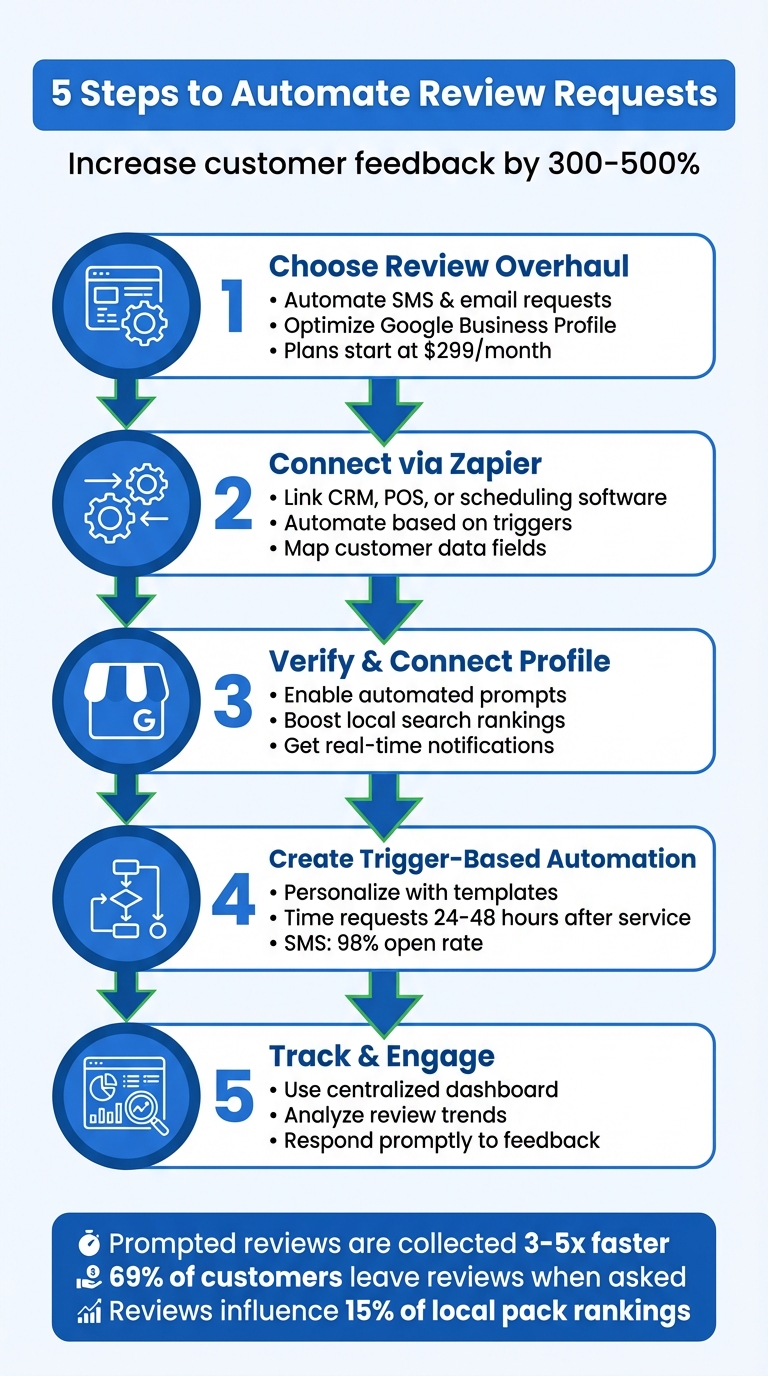
5 Steps to Automate Review Requests Workflow
How to Automate Google Review Requests for Your Business 2026
sbb-itb-50c3429
Step 1: Choose Review Overhaul for Your Business
Picking the right platform lays the groundwork for a reliable and scalable reputation system. Review Overhaul takes the hassle out of manual follow-ups by automating the process, focusing on generating new reviews rather than just managing the ones you already have. This system is tailored for service-based industries – like healthcare, legal practices, restaurants, hotels, and auto repair shops – where reviews are vital for improving local search rankings and building customer trust.
Here’s what makes Review Overhaul a standout choice for service-based businesses.
Key Features of Review Overhaul
Review Overhaul simplifies the review process with automated SMS and email workflows, helping you secure 40+ new reviews within 90 days. Why is this important? Many potential customers avoid businesses with fewer than 40 reviews.
The platform goes beyond review generation by optimizing your Google Business Profile to enhance local search rankings. It also offers professional response services to handle customer feedback effectively and tracks reviews across multiple platforms. To safeguard your reputation, it includes a feature that redirects negative feedback to private channels, allowing you to address complaints before they go public.
Pricing Plans Overview
Review Overhaul offers three pricing tiers designed to fit businesses of different sizes and needs:
- Basic Plan: $299/month. Includes essential automated review generation and basic monitoring. Perfect for small practices or single-location businesses starting to build their online presence.
- Professional Plan: $399/month. Adds local listing updates and advanced profile management, making it ideal for businesses in competitive local markets.
- Premium Plan: $499/month. Offers full-service reputation management, including crisis response, voice search optimization, and management of listings across multiple platforms.
All plans come with a 30-day money-back guarantee based on results, giving you peace of mind while you test the platform.
Step 2: Connect Review Overhaul to Your Business Systems
Integrate Review Overhaul with your everyday business tools to streamline and automate review requests. This shift turns what used to be manual follow-ups into a hands-free process. Whether you rely on a CRM like HubSpot or Salesforce, a POS system like Square or Shopify, or scheduling software like Acuity or Calendly, Review Overhaul connects effortlessly through Zapier – a platform that links thousands of business apps.
Zapier enables this automation using "Zaps", which are essentially automation rules. Each Zap consists of a trigger (an event in your system, such as "Payment Received" in Square) and an action (Review Overhaul sending a review request). To make this work, you’ll need to map critical data fields like Customer Name, Email, and Phone Number so that the request reaches the right person. If your app doesn’t have a native Zapier integration, you can use webhooks to send data directly.
| System Type | Popular Compatible Apps | Common Automation Triggers |
|---|---|---|
| CRM | HubSpot, Salesforce, LionDesk | New Contact, Deal Won, Tag Added |
| POS / Payments | Square, Shopify, Stripe | New Payment, Order Fulfilled, Invoice Paid |
| Booking / Scheduling | Acuity, Mangomint, Calendly | Appointment Completed, Check-out Finished |
| Field Service | ServiceTitan, FieldRoutes | Job Completed, Invoice Sent |
How System Integration Powers Automation
Understanding your system’s specific triggers is key to setting up automation correctly. Once integrated, your tools will handle review requests automatically. For example, as soon as a customer completes a transaction or appointment, Review Overhaul is notified and sends out the request. This shift from manual to automated processes can boost your review collection rates by 300% to 500%.
Choosing the right trigger is crucial. Should the request go out immediately after service is completed? Or would a short delay allow the customer time to reflect on their experience? You can fine-tune these timing delays in your automation settings to strike the right balance. Before launching, always run a "Test Action" in Zapier to ensure customer data flows correctly into the review request fields.
"Automation doesn’t replace human touch – it enhances it by ensuring consistent, timely review requests that would otherwise be forgotten in busy operations."
– David Park, ReviewInvite
Step 3: Link Your Google Business Profile
Connecting your Google Business Profile is a key step to streamline your review process and strengthen your online presence. Start by verifying your business on Google, then link your profile to Review Overhaul. This connection enables automated review requests and responses, setting the foundation for efficient, real-time customer engagement.
Once your business is verified, log into Review Overhaul, head to the integration settings, and link your Google Business Profile. You’ll need to provide your direct review link and select the correct physical location. Afterward, activate the review request feature to automatically send SMS and email prompts that reflect your brand’s tone and style.
This integration also enables real-time notifications – via email, SMS, or your dashboard – which is critical. Studies show that waiting more than 24 hours to respond can lower response rates by 40–60%.
Improve Local Visibility Through Google Business Profile
Linking your profile doesn’t just help with automation – it also boosts your search rankings. Authentic reviews are estimated to influence around 15% of local pack rankings. Regularly updated, five-star reviews not only improve your visibility in local searches but also help establish credibility.
Businesses that incorporate reputation management often notice improvements within 30 to 60 days. A consistent stream of reviews signals to Google that your business is active and relevant, which increases your chances of appearing in searches when potential customers are looking for your services. Considering over 90% of consumers read reviews before making a purchase, this heightened visibility can also build trust with your audience.
"More reviews don’t just make you look better – they help you rank better. When your profile is filled out, updated regularly, and loaded with five-star feedback, Google takes notice." – Nurturely+
Step 4: Create Automated Review Request Workflows
Once your Google Business Profile is connected, it’s time to set up automated workflows to capture those glowing customer experiences. Tools like Review Overhaul let you build trigger-based automation that sends review requests when specific actions are completed – like wrapping up an appointment, finalizing a purchase, or closing a support ticket. This ensures satisfied customers receive a timely nudge to share their feedback.
Personalization is key here. Use dynamic fields like {{contact.first_name}} or {{location.name}} to make messages feel tailored. For communication channels, SMS works wonders for quick, direct requests – it boasts a 98% open rate. Email, on the other hand, offers more room for branding, allowing you to include your logo, colors, and other design elements.
Set Up Triggers and Customize Templates
Start by defining the triggers that will launch your workflows. You can use conditional logic to refine these – for instance, only sending requests for events labeled "Consultation" or when a participant’s status is marked as "Attended".
Next, craft your templates with Review Overhaul’s drag-and-drop editor. Add your company logo, choose brand colors, and use merge fields to address customers by name. Since 69% of customers are likely to leave a review when asked, make your message feel authentic and relevant to their experience. Test different subject lines and calls-to-action to find what resonates best. Once your triggers and templates are ready, focus on timing and filtering to optimize your review collection process.
Choose the Right Timing and Filter Feedback
Timing is everything. For most services, sending requests 24 to 48 hours after completion works best for high response rates. For e-commerce, waiting 7 to 10 days after delivery ensures customers have had time to receive and use the product.
To protect your online reputation, use feedback routing (also known as gating). Start with an initial star rating: direct customers who give 4–5 stars to public review platforms like Google, while redirecting 1–3 star feedback to a private form. If a customer doesn’t respond to your first request, set up automated follow-ups at intervals of 3, 5, or 7 days. Follow-ups can significantly improve engagement – especially via text messages, which have an impressive 98% open rate.
Step 5: Monitor and Respond Using the Dashboard
Once your workflows are active, reviews will start rolling in – this is where you analyze performance and connect with your customers. The dashboard acts as your central hub, bringing together feedback, metrics, and tools to help you manage your online reputation effectively.
Track Performance and Fine-Tune Your Strategy
Dive into the dashboard metrics – things like your average star rating, total review count, and mentions of specific services. These details can highlight where you’re excelling and where there’s room for improvement. Keep an eye on review signals, which account for about 15% of local pack ranking factors on search engines. Consistent, quality reviews not only enhance your local visibility but also provide valuable insights to tweak your automated triggers and follow-up strategies.
Once you’ve reviewed the data, take action by crafting thoughtful, tailored responses to customer feedback.
Write Thoughtful and Professional Responses
Responding promptly and professionally to reviews shows your customers that you care. It also reinforces your brand’s values. For assistance, Review Overhaul offers professional GMB management services to help you craft replies to help you craft replies that hit the right tone.
For positive reviews, take the time to thank customers by name and mention specific details they’ve shared. For example, if someone praises your friendly staff, acknowledge that directly. On the other hand, when handling negative reviews, start by acknowledging the issue and apologizing sincerely. Then, guide the conversation offline by providing a direct way for the customer to reach you.
A well-crafted response typically includes:
- A personalized greeting
- Validation of the customer’s experience
- A clear next step or call to action
Here’s an example:
"Hi Sarah, we’re truly sorry to hear about your experience with our check-in process. This isn’t the level of service we strive to provide. Please reach out to us at support@yourbusiness.com so we can address this matter directly. Sincerely, The [Business Name] Team."
This type of response shows accountability while keeping the more detailed discussion private, ensuring the customer feels heard and respected.
Conclusion
Gathering customer reviews doesn’t have to be a tedious, manual process anymore. With Review Overhaul, you can automate the entire system in just five steps: select the platform, integrate it with your systems, connect your Google Business Profile, set up workflows, and track how it’s performing. This eliminates the hassle of manual follow-ups and replaces it with a reliable, automated solution.
Did you know that prompted reviews reach 69% of customers and are collected 3–5 times faster? That means fewer hours spent on admin tasks and more time for what matters – growing your business. Plus, for service-based businesses across the U.S., this approach helps improve visibility in the Google Maps 3-pack, strengthens customer trust, and ultimately drives more revenue.
A steady flow of genuine reviews tells potential clients that you prioritize customer satisfaction. With Review Overhaul, you can automatically trigger review requests after appointments and even manage responses professionally to maintain your brand’s voice. It’s a hands-off system that keeps your reputation polished without constant effort.
Why chase reviews when you can build a system that works for you? Visit Review Overhaul today to see how automation can transform your online presence, giving you more time to focus on what you do best – delivering exceptional service.
FAQs
Which trigger should I use to send review requests?
The best moment to ask for reviews is immediately after a customer has completed an important action, like making a purchase, attending an appointment, or finishing a service interaction. Triggers such as order delivery, project wrap-up, or service completion work well. Reaching out at this point captures feedback while the experience is still fresh, boosting both the likelihood of a response and the relevance of the input.
How do I avoid sending requests to the wrong customers?
To make sure you’re sending review requests to the right customers, focus on timing and targeting. Only trigger these requests after a customer has completed their purchase or service, giving them enough time to provide meaningful feedback.
Consider segmenting your customers based on their interactions or purchase value. This allows for a more personalized approach, which can lead to higher-quality responses. Avoid sending requests too soon – like before they’ve had a chance to use the product – since this often results in less helpful feedback. Instead, wait until you’ve confirmed their satisfaction. This strategy not only boosts engagement but also reduces the chance of errors.
How do I handle negative feedback without hurting my rating?
Handling negative feedback requires a thoughtful and professional approach. Don’t ignore it or respond defensively – that can escalate the situation. Instead, start by acknowledging the concern. If there’s merit to the feedback, take responsibility and focus on finding a solution. This shows that you value customer input and care about their experience. A calm and genuine response can go a long way in protecting your reputation, keeping the customer, and even turning their negative experience into a more positive one.
