Dashboards simplify managing your online reputation by centralizing reviews, ratings, and customer feedback across platforms like Google and Facebook. They help track performance, analyze customer sentiment, and alert you to issues in real-time. With features like AI-powered sentiment analysis, competitive benchmarking, and automated notifications, you can respond quickly to reviews, identify trends, and improve customer trust. Here’s what you can do:
- Monitor Reviews: Track star ratings, review volume, and sentiment trends.
- Respond Quickly: Set alerts for new reviews and reply within 24 hours.
- Analyze Sentiment: Use AI tools to identify themes in positive and negative feedback.
- Benchmark Performance: Compare your ratings and response rates against competitors.
- Streamline Management: Customize dashboards for multiple locations and set automated reports.
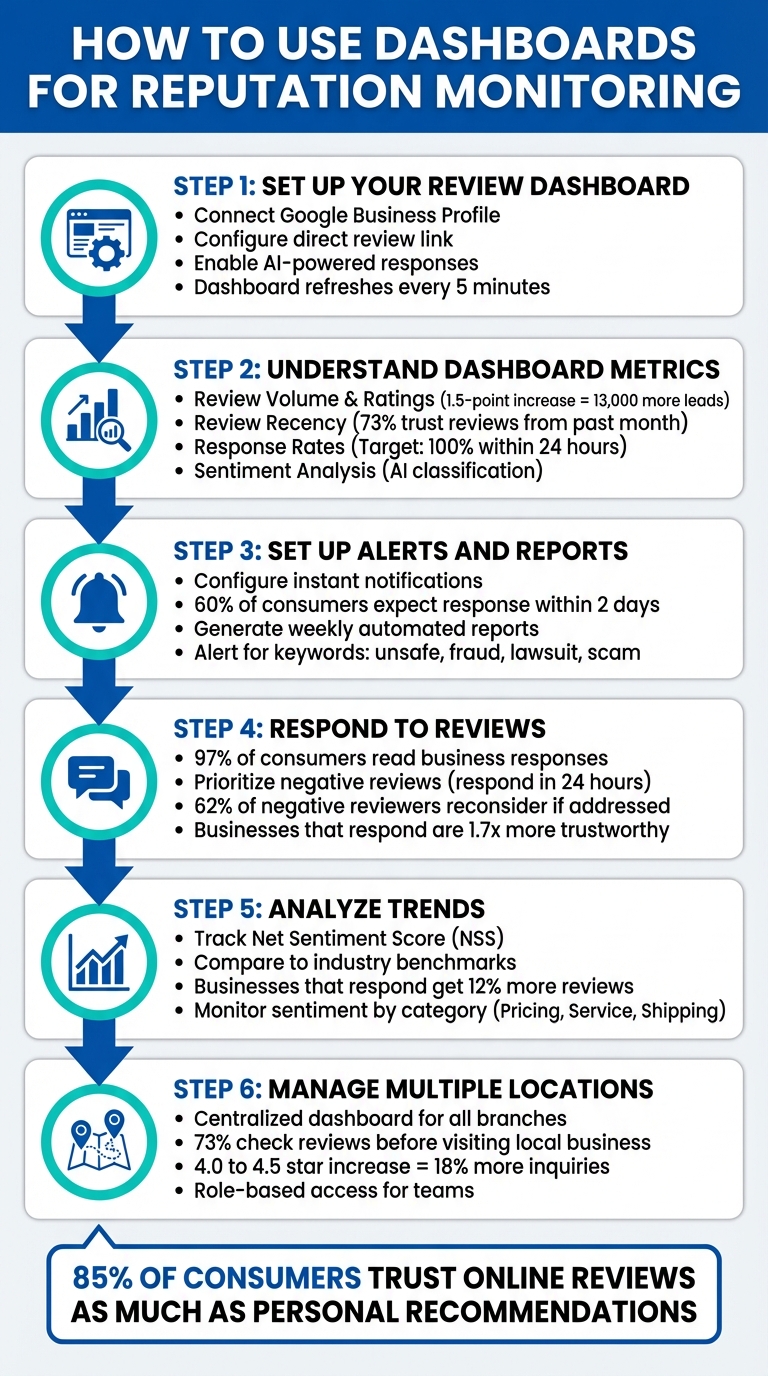
6-Step Dashboard Setup Process for Reputation Monitoring
How To Set Up and Use Reputation Management
sbb-itb-50c3429
Step 1: Set Up Your Review Overhaul Dashboard
Start by logging in to access the Guided Review Setup Wizard on your Reputation Management Overview screen. This wizard will guide you through six essential steps: connecting platforms, configuring links, sending review requests, setting up AI responses, creating widgets, and adding additional sources. Once these steps are completed, the wizard disappears, leaving you with a fully functional Reputation Management Overview. From there, you can connect review sources, adjust how data is displayed, and set up real-time notifications.
Connect Your Google Business Profile
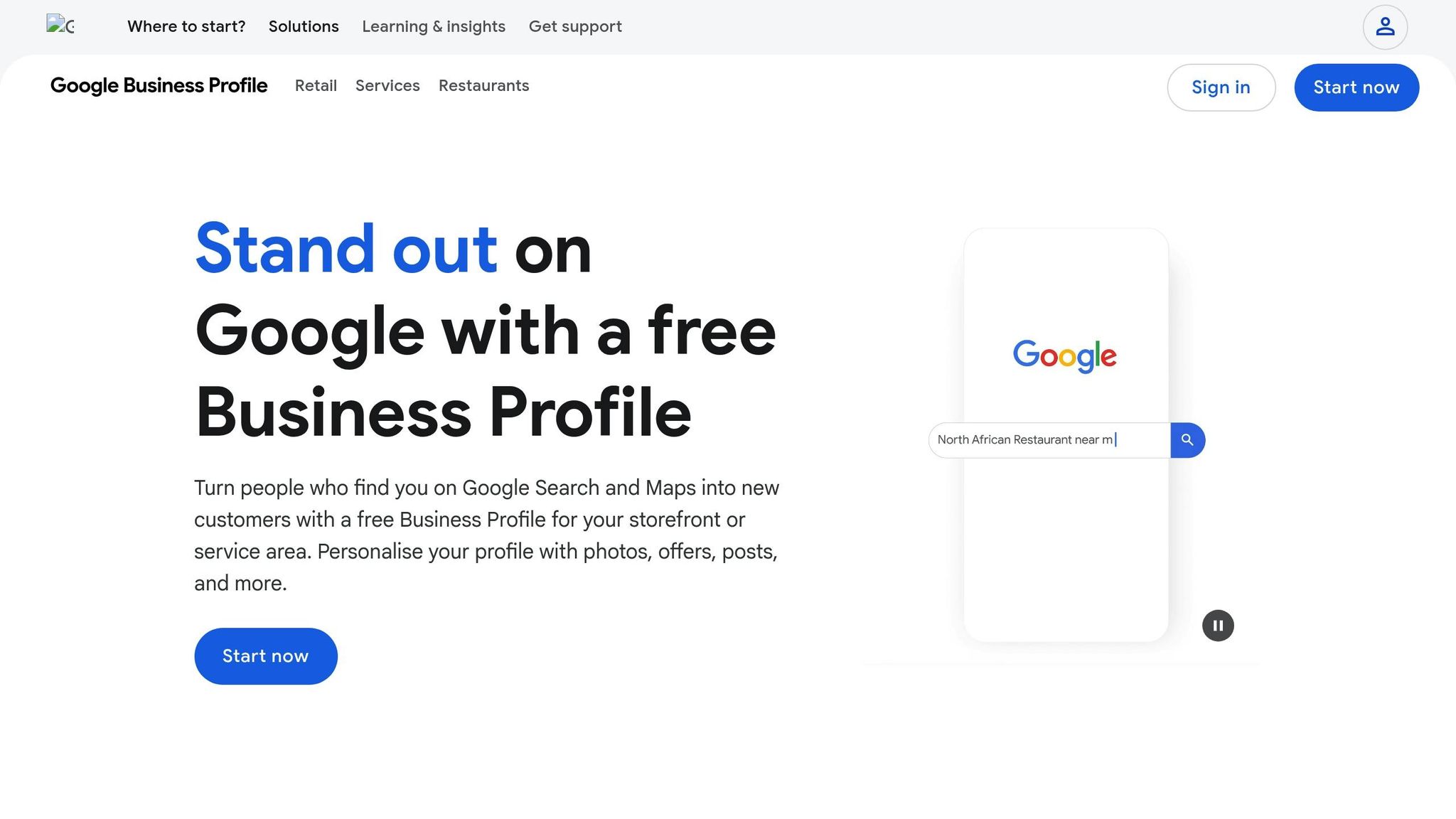
To link your Google Business Profile, head to the Integrations page. You can find this by clicking the ‘+’ icon in the top-right corner of the Reputation app or next to the Source filter. Select ‘Google Business Profile’ and then click ‘Continue’.
A login modal will open in a new tab. It’s crucial to disable any ad blockers beforehand, as they can interfere with the pop-up permission window. Log into your Google account and grant all necessary permissions. If you’re managing multiple locations, make sure to select the specific one during the login process.
Once connected, allow a few minutes for the initial sync. From then on, your dashboard will refresh automatically every 5 minutes, ensuring you always have the latest reviews and replies. This frequent update cycle helps you stay on top of customer feedback without delay.
With your Google Business Profile now linked, you’re ready to fine-tune your dashboard for maximum efficiency.
Customize Dashboard Settings
After connecting your profile, take some time to personalize your dashboard settings to match your needs. Start by setting up a direct review link in Settings → Review Link. This creates a simple URL you can share with customers, making it easier for them to leave feedback.
Next, go to Settings → Reviews AI and toggle the feature to "On." This enables the system to generate automated responses in your preferred tone, saving you time and ensuring consistency in your replies. If you want to showcase customer feedback on your website, you can add review widgets by copying the embed code from the Widgets tab and pasting it into your site’s HTML. Displaying reviews can increase conversions by up to 270%.
Finally, configure your notification preferences to receive alerts for new reviews. Prompt responses are critical – 74% of consumers are likely to avoid a brand if they see negative content on the first page of Google search results. With these settings in place, your dashboard is fully equipped to help you manage and improve your online reputation.
Step 2: Understand Dashboard Metrics
Once your dashboard is live, the data it provides becomes your guide for shaping an effective reputation management strategy. Key metrics like volume, recency, sentiment, and response rates work together to provide actionable insights.
Review Volume and Ratings
Your dashboard highlights total review counts and monthly volume, offering a clear picture of how often customers are leaving feedback. Pay close attention to the "Average Score" for your selected timeframe and compare it to the "All Time Native Score". If your recent average is improving, it’s a sign that your service adjustments are resonating with customers. A decline, however, signals the need to dig deeper and identify what might be going wrong.
Here’s a compelling stat: a 1.5-point increase in your star rating can lead to 13,000 more leads. Keep an eye on the "Reviews by Month" graph, which uses color-coded bars to indicate sentiment (Dark Grey for positive and Red for negative) and a line to show the average monthly rating. This visual makes it easier to connect review trends with customer satisfaction. Also, remember that about 20% of review invites result in actual posts. So, if you send out 100 requests each month, you can expect roughly 20 new reviews.
Review Recency and Sentiment Analysis
Fresh reviews matter more than older ones. In fact, 73% of consumers only trust reviews written in the past month. Your dashboard tracks review recency, helping you ensure a steady flow of up-to-date feedback. If you notice a dip in the current month’s review count, it’s a cue to step up your efforts to generate more reviews.
Sentiment analysis takes things a step further by using AI to classify reviews as positive, neutral, or negative. This isn’t just about numbers – it’s about understanding the emotional tone behind customer feedback. This insight can help you pinpoint recurring issues that need attention. Use this data to monitor whether positive sentiment is growing and to identify patterns in negative reviews that may highlight areas for improvement.
Once you’ve assessed sentiment, the next step is to focus on how quickly and effectively you’re responding to customer feedback.
Response Rates and Impact
Two key metrics on your dashboard help you track your responsiveness: "Percent Responded" and "Response Time". Strive for a 100% response rate and aim to reply to reviews within 24 hours to show attentiveness and build trust.
The "Reviews Awaiting Response" filter is particularly helpful for spotting feedback that still needs attention. Use it to prioritize negative or high-impact reviews that require immediate replies. Additionally, monitor the "Average Time to Respond" metric to ensure your team is meeting internal standards. Considering that over 85% of consumers trust online reviews as much as personal recommendations, leaving reviews unanswered can hurt your credibility.
| Metric | What to Track | Target Benchmark |
|---|---|---|
| Review Recency | Age of most recent reviews | Within the last 30 days |
| Response Rate | Percentage of reviews answered | 100% |
| Response Time | Hours between review and reply | Under 24 hours |
| Sentiment Score | Ratio of positive to negative tone | Increasing positive trend |
Step 3: Set Up Alerts and Reports
Relying on end-of-day checks for new reviews can leave you playing catch-up. Instead, real-time alerts and automated reports turn your dashboard into a proactive tool, keeping you updated the moment something requires attention.
Configure Notifications for New Reviews
Head to the Settings/Alerts section to set up notifications. Enable instant alerts (Per Review frequency) to get updates as soon as feedback is posted [20,21]. This is crucial since 60% of consumers expect businesses to respond to their reviews within two days [11,24].
Set alerts for low star ratings and negative sentiment, especially for keywords like "unsafe", "lawsuit", "fraud", or "scam", ensuring critical feedback is escalated to senior management promptly. You can also customize alerts by platform (Google, Yelp, TripAdvisor), language, or location, which is essential for restaurant reputation management [11,20].
Choose notification channels that align with your team’s workflow – whether that’s email, SMS, push notifications, or tools like Slack or your CRM [19,21]. Assign alerts to the appropriate teams: customer service for general issues and your compliance officer for legal concerns, a common workflow in healthcare reputation management [19,20]. As a reputation management expert explains:
"A single negative review can snowball into a reputation crisis in a matter of hours… Manually keeping track of every review, mention, and rating change across dozens of platforms is not just inefficient; it’s impossible."
- Eseospace Developer, Expert Reputation
To avoid "alert fatigue", periodically review your alert settings and adjust their sensitivity. Keep in mind that 62% of negative reviewers would reconsider their stance if a business owner addressed their concerns effectively.
While instant alerts handle urgent issues, weekly reports allow you to track broader trends and refine your strategy for long-term reputation management.
Generate Weekly Reports
Access the report configuration settings to set up weekly reports and assign a distribution list for stakeholders. Key metrics to include are review volume by platform, sentiment analysis, Net Promoter Score (NPS), Customer Satisfaction (CSAT), and response performance, such as average response time and unresolved reviews [22,23]. Many dashboards make this simple with drag-and-drop interfaces to organize data into sections, and you can hide modules with no activity for that week.
For businesses managing multiple locations, filtered, location-specific reports can help pinpoint which branches are excelling and which need extra attention [22,23]. Once configured, use the "Save and Schedule" function to automate delivery. This ensures reports are sent to stakeholders at the start of each week without requiring manual effort. Additionally, the dashboard will keep a log showing when reports were sent, who received them, and their last viewed date.
Step 4: Respond to Reviews from the Dashboard
With alerts and reports set up, your dashboard becomes the hub for managing customer engagement. Here’s why this matters: 97% of consumers who read reviews also check out how businesses respond to them. That means your replies aren’t just about damage control – they’re part of your brand’s image. The dashboard simplifies this process, helping you focus on what matters most: addressing feedback effectively and quickly prioritizing reviews that need your attention.
Prioritize High-Impact Reviews
Quick responses can make or break customer trust. The "Reviews Awaiting Response" section in your dashboard collects all feedback from connected platforms into one inbox. Start by focusing on negative reviews (1–2 stars). These demand immediate attention since 64% of dissatisfied customers expect a response. Even better, 62% of those customers are willing to give your business another shot if their concerns are resolved within 24 hours.
Your dashboard’s "Reviews by Response Time" chart highlights overdue feedback, helping you stay on top of the ideal response windows:
- Negative reviews: respond within 24 hours.
- Neutral reviews (3 stars): aim for 24–48 hours.
- Positive reviews: reply within 2–3 days.
For spam or fake reviews, skip the back-and-forth – report them right away or use a Google Business Profile management service to handle it for you. Use the dashboard’s task management tools to flag reviews that need urgent action or have missed their response deadlines.
Write Professional Responses
Once you’ve identified which reviews to tackle, focus on crafting thoughtful, customer-centric replies. Why? Because 90% of consumers are moderately to strongly influenced by how businesses respond. For negative feedback, start by apologizing and acknowledging the issue, then offer a solution or invite the reviewer to continue the conversation offline (e.g., via phone or email). For positive reviews, personalize your response by referencing specific details from the review. Neutral reviews? Thank the customer and invite them to share suggestions for improvement.
Taking the time to respond thoughtfully has a big payoff. 92% of consumers now view owner responses as a critical part of good customer service, and businesses that respond are seen as 1.7 times more trustworthy. To avoid missteps, have a colleague review sensitive responses to ensure they strike the right tone and don’t come across as defensive. Your dashboard makes this process seamless, letting you draft, edit, and post replies all in one place.
Step 5: Analyze Trends and Optimize Reputation Efforts
Responding to reviews is just the beginning. The real value of your dashboard lies in its ability to uncover trends that highlight what’s working and what needs improvement. By using the insights from your Review Overhaul dashboard, you can shift from simply reacting to reviews to making data-driven decisions. This proactive approach can help transform your business reputation from good to great. Let’s dive into how you can use these trends to guide your strategy.
Track Trends Over Time
Your dashboard’s visual tools, like line and bar graphs, provide a clear view of review volume and average star ratings over the past year. These visuals make it easier to evaluate whether your reputation is improving or slipping. Keep an eye on your Net Sentiment Score (NSS) – calculated by subtracting negative mentions from positive ones – to detect shifts in customer sentiment early, before they escalate into larger issues.
One of the dashboard’s strengths is its ability to categorize reviews by themes, such as Pricing, Shipping, and Customer Service. This helps you identify which areas are contributing to positive or negative trends. For example, if your average rating is 4.2 stars but has dropped by 5% compared to the previous quarter, it’s a signal to dig deeper and address potential issues.
Set up automated alerts for significant changes, like a 20% drop in sentiment, so you can act quickly. Additionally, use the "Reviews by Source" pie charts to determine which platforms, such as Google, Facebook, or Yelp, are generating the most feedback. This is why optimizing your Google Business Profile is critical for capturing more reviews and improving local visibility. This allows you to prioritize your efforts on platforms with the highest activity.
While tracking internal trends can guide operational improvements, comparing your performance to competitors provides essential context for where you stand in the market.
Compare Ratings to Industry Benchmarks
Understanding your own metrics is important, but without context, the numbers don’t tell the full story. Your dashboard can help you benchmark your performance against industry standards and local competitors. For instance, in 2024, the average Net Promoter Score (NPS) for the Insurance industry was 88, while Restaurants averaged 75. If your restaurant’s NPS is 65, these benchmarks show there’s room for growth.
You can also input competitor data to compare metrics like total review volume, average star ratings, and response rates side by side. This comparison is crucial because 30% of consumers expect nearly perfect ratings, and only 3% consider businesses with fewer than 3 stars. If your competitors have a 4.6-star average and you’re at 4.2, narrowing that gap could make a big difference in attracting customers.
Don’t forget to track your response rate. Businesses that actively respond to reviews tend to receive 12% more reviews than those that don’t. This simple step helps build trust and encourages more feedback, which fuels your overall improvement efforts.
Step 6: Manage Multiple Locations with Custom Dashboards
Managing multiple locations becomes much easier when you can monitor all branches through a single, centralized dashboard. This is especially important since 73% of consumers check online reviews before visiting a local business. A negative review at just one location can ripple through and affect your overall brand reputation.
The secret lies in using role-based access. With the Review Overhaul dashboard, you can view data at three levels: account-wide (all locations combined), group-wide (regional clusters like "Northeast Franchises"), and individual locations. This setup allows corporate teams to keep an eye on brand health across the board while giving local managers the tools to focus on their specific store’s performance. When managing Google Business Profiles, consolidating all listings under one group simplifies responding to reviews at scale. Next, let’s explore how to fine-tune your dashboard for each location’s unique needs.
Adjust Location-Specific Views
Customizing your dashboard for specific branches starts with applying override filters to zero in on individual performance. This lets you compare locations side-by-side. For instance, you might notice one branch consistently scoring higher star ratings than another, signaling where operational tweaks are needed.
Add custom tiles to track key metrics for each location. The Progress Tracking module shows ratings and review volume, while Request Monitoring tracks how many review invites have been sent. Meanwhile, Reply Management highlights pending responses. Since most customers expect a reply within 48 hours, regularly check the "Open Reviews" or "Awaiting Response" modules to ensure no location lags behind.
Sentiment analysis is another game-changer. It helps you identify location-specific issues rather than applying blanket solutions. For example, one branch might get frequent complaints about slow service, while another is praised for its speed. This insight allows you to address issues where they matter most. Additionally, tracking average response times by location can highlight branches that need extra support – responding within 24 hours can boost customer sentiment by 25%.
Once these custom views are set up, you can shift your focus to monitoring each branch’s local listings and reviews.
Monitor Local Listings and Reviews
In addition to tracking internal metrics, keeping an eye on local listings ensures a consistent brand presence across all locations. A well-designed dashboard should pull reviews from platforms like Google, Facebook, Yelp, and industry-specific sites, helping you spot negative feedback at smaller branches before it becomes a larger issue. Use the "Reviews by Source" breakdown to identify which platforms generate the most feedback for each branch.
Establish clear KPIs for all locations – such as maintaining a minimum 4.5-star rating, achieving a 90% response rate, and setting up alerts for low-star reviews. Even small improvements can make a big difference: moving from a 4.0 to a 4.5-star rating can boost customer inquiries by about 18%. Make sure local managers receive timely alerts about low ratings so they can respond quickly.
Keep an eye on Google Business Profile metrics, like comparing Maps impressions to Search impressions, to identify areas that need stronger local visibility. For example, if one branch has strong Search impressions but weak Maps visibility, it could indicate an opportunity to improve local SEO. It’s worth noting that the average multi-location business only responds to 35% of negative reviews. Your dashboard can help you surpass that standard, holding every location accountable and ensuring no review goes unanswered.
Conclusion
By following the steps outlined above, your dashboard becomes a powerful tool for managing your online reputation. A reputation monitoring dashboard simplifies the process, eliminating the hassle of juggling multiple platforms and giving you one place to manage all your reviews. This not only saves time but also helps avoid the exhaustion of manually checking multiple sites daily.
Beyond just numbers, the data from your dashboard plays a critical role in protecting revenue and improving operations. It ensures that no negative review goes unnoticed, which is vital given that 85% of consumers trust online reviews as much as personal recommendations. With the ability to address issues promptly – ideally within 24 to 48 hours – you can prevent small problems from escalating into larger ones.
Additionally, the dashboard empowers you to take immediate action. Use sentiment analysis to identify recurring issues and automate review requests, especially since customers are 70% more likely to leave a review when asked directly. Tracking response rates also ensures accountability across all locations.
Whether you’re managing one location or multiple branches, Review Overhaul’s dashboard equips you with the tools to monitor performance, respond efficiently, and spot key trends. From generating reviews to optimizing your Google Business Profile, the platform helps you maintain that all-important 4.8+ star rating across all your locations.
Start now: set up your dashboard, define key metrics, and respond consistently to strengthen customer trust. The sooner you begin tracking these insights, the quicker you’ll see improvements in both customer loyalty and local search rankings.
FAQs
Which metrics matter most for reputation monitoring?
When it comes to keeping tabs on your business’s reputation, a few key metrics can offer valuable insights. These include:
- Review Volume: The total number of reviews your business receives gives a snapshot of customer engagement and visibility.
- Sentiment: This reflects the tone of customer feedback – whether it’s positive, negative, or neutral.
- Response Rate: How often and how quickly you respond to reviews shows your commitment to customer interaction.
- Star Ratings: A quick indicator of overall customer satisfaction.
- Social Mentions: References to your brand on social media platforms can highlight trends and public perception.
- Website Traffic: Changes in traffic can often correlate with shifts in your online reputation.
Tracking these metrics regularly helps you understand customer perceptions, spot areas where you can improve, and build trust by staying engaged with feedback. Plus, it provides a way to measure how your reputation management efforts are influencing customer interactions.
How should I set alerts without getting overwhelmed?
To keep notifications useful and avoid overwhelm, tailor them to highlight the most important reviews. Adjust the frequency – whether real-time, daily, weekly, or monthly – based on what works best for you. Fine-tune alerts by narrowing them down to specific business units, locations, or review criteria. You can also prioritize critical feedback by filtering for particular ratings or keywords. These strategies ensure you stay updated on what matters most without being bogged down by irrelevant alerts.
How do I manage reviews for multiple locations in one dashboard?
Managing reviews for multiple locations can be a challenge, but centralized platforms make it much easier by bringing everything together in one place. Take Review Overhaul as an example – it provides tools to monitor, respond to, and enhance your reputation across all your locations. These dashboards simplify the process, helping you stay consistent, respond quickly, and save time, all while keeping your online presence polished and professional.
