
Optimizing photos for your Google Business Profile can directly impact your business’s visibility and customer engagement. Here’s why it matters and how to do it:
- Businesses with photos receive 42% more driving direction requests and 35% more website clicks than those without.
- Google uses photo quality and updates as ranking signals, influencing your local search visibility.
- Profiles with 100+ images see a 2,717% increase in direction requests and 960% more search views.
Key Steps to Optimize Your Photos:
- Follow Google’s Photo Guidelines:
- Use JPG or PNG formats.
- Minimum resolution: 250 × 250 pixels (recommended: 720 × 720 pixels).
- File size: 10 KB to 5 MB.
- Avoid stock photos, screenshots, or excessive text overlays.
- Prepare Photos Before Uploading:
- Resize and crop to recommended dimensions (e.g., 1024 × 576 px for cover photos).
- Name files with keywords (e.g.,
coffee-shop-downtown-nyc.jpg) for better SEO. - Include visible local landmarks to help Google recognize your location.
- Organize and Upload:
- Categorize images (e.g., Exterior, Interior, Team, Products).
- Add at least three photos per category for a complete profile.
- Regularly update with 2–5 new photos weekly to stay active.
- Track Performance:
- Use Google Business Profile Insights to monitor views, clicks, and engagement.
- Replace underperforming photos and focus on images that drive more interactions.
High-quality, well-organized photos can enhance your profile’s appearance and boost customer trust. Regular updates and attention to detail ensure your business stays relevant and visible in local searches.
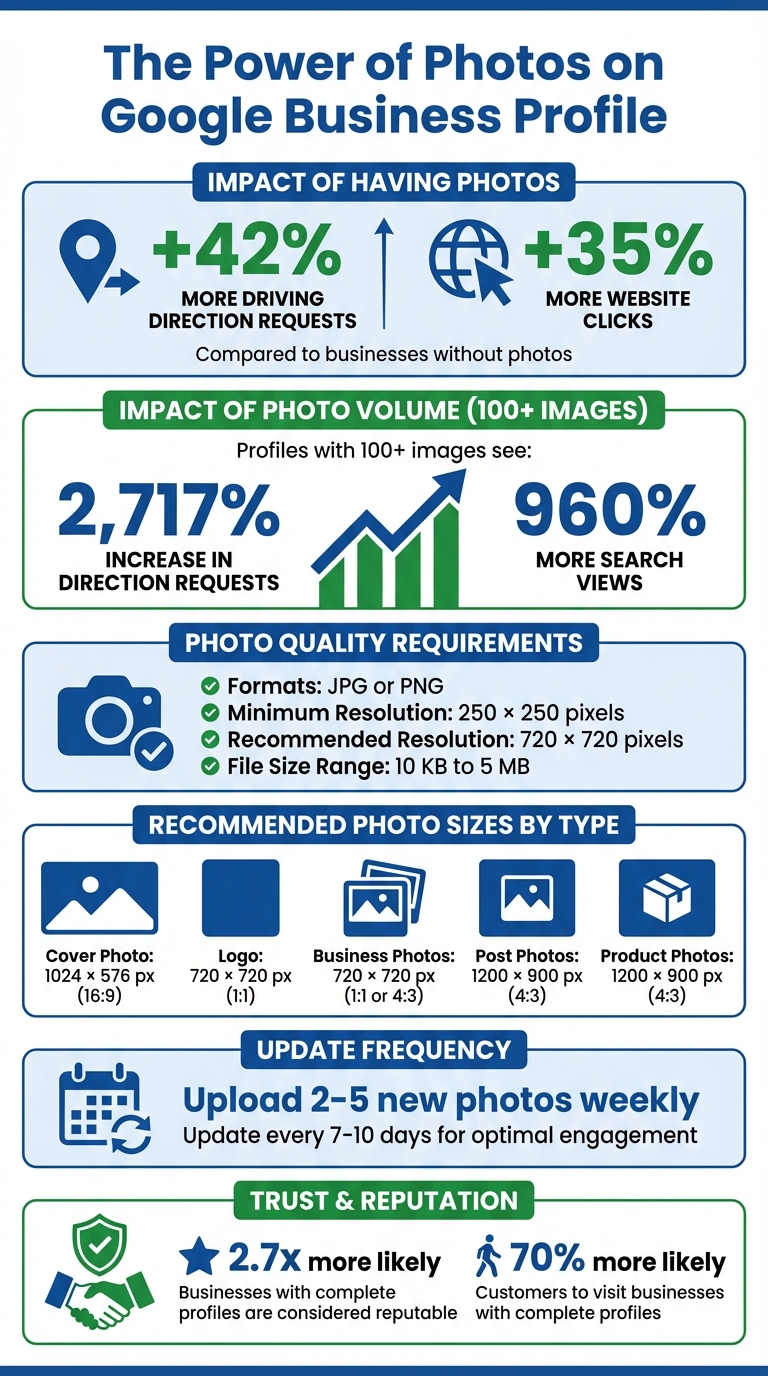
Google Business Profile Photo Optimization Impact Statistics
How to manage photos or videos for your Google Business Profile
sbb-itb-50c3429
Step 1: Know Google Business Profile Photo Requirements
Before uploading, make sure your photos meet Google’s standards to ensure they display correctly and avoid any issues as part of your Google Business Profile optimization.
Image Formats and File Types
Google Business Profile supports JPG and PNG formats. For general business photos, JPG works best because it compresses efficiently while staying within the 5 MB limit. If you’re uploading a logo, PNG is ideal since it keeps sharp edges intact and supports transparent backgrounds.
Avoid using screenshots, stock photos, or GIFs, as these are not allowed. Also, limit text overlays to cover no more than 10% of the image area.
Next, you’ll need to check the dimensions and resolution requirements for different photo types.
Photo Dimensions and Resolution
To ensure your photos look sharp on all devices, images must have a minimum resolution of 250 × 250 pixels, but a resolution of 720 × 720 pixels is recommended. Below are the ideal sizes for specific photo types:
| Photo Type | Recommended Size | Aspect Ratio |
|---|---|---|
| Cover Photo | 1024 × 576 px | 16:9 |
| Logo | 720 × 720 px | 1:1 |
| Business Photos | 720 × 720 px | 1:1 or 4:3 |
| Post Photos | 1200 × 900 px | 4:3 |
| Product Photos | 1200 × 900 px | 4:3 |
Keep the main subject centered because Google may crop your images differently depending on where they appear. For example, images might show as square thumbnails in Search or rectangular formats in Maps, which could cut off important parts of your photo.
File Size Limits and Compression
Photos must be between 10 KB and 5 MB in size. To strike a balance between quality and file size, set JPG compression to 85. Increasing the quality beyond this point usually results in larger files without noticeable improvement.
For further optimization:
- Use tools like ImageMagick to strip unnecessary metadata.
- Enable progressive rendering for JPEGs larger than 10 KB.
- Remove the alpha channel from PNG files unless transparency is required.
Step 2: Prepare Your Photos Before Uploading
Once you’re clear on Google’s guidelines, the next step is to get your images ready. Proper preparation ensures your photos look great on all devices and can even boost your local search visibility.
Resize and Crop Your Images
To avoid awkward cropping on different devices, center your subject in the frame.
Leave some breathing room around key details – like your business name or entrance – by avoiding tight framing. This ensures that important elements remain visible no matter where the photo is displayed.
Tools like Adobe Express can help you crop and adjust lighting. While 720 x 720 pixels is often sufficient, uploading larger images – like 1,200 x 900 pixels – can maintain higher quality, as long as the subject stays centered.
Once your images are resized and cropped, the next step is optimizing their file names.
Name Files with Keywords
File names matter. Rename your images with descriptive keywords and hyphens, such as dentist-office-waiting-room-atlanta.jpg. Google uses file names to understand the context of your photos. Hyphens are interpreted as spaces, making them easier for Google to read, while underscores might confuse the system by treating the text as one long word.
Adding your city or neighborhood to the file name can also strengthen your local SEO strategy, helping to tie your images to a specific area.
Optimized photos can make a big difference: businesses with well-prepared images see 35% more click-throughs to their website and 42% more requests for driving directions compared to those without.
Finally, ensure your photos emphasize your location by incorporating geotags and metadata.
Add Geotags and Metadata
Technical tweaks can further enhance your profile’s relevance in local searches.
It’s worth noting that Google strips EXIF metadata, including geotags, when you upload images.
Instead, rely on visual geotagging. Include recognizable local landmarks, street signs, or a clear view of your storefront with its address visible. These elements help Google identify the location in your photos. Google’s AI, powered by its Cloud Vision technology, analyzes images to detect objects and locations. If you’re curious about how Google interprets your photos, try using the Cloud Vision API "Try the API" tool before uploading.
"Google strips EXIF metadata (including geotags) when you upload an image. So, even if you painstakingly add location data, it won’t stick." – Synup
Step 3: Upload and Organize Photos on Your Profile
Start by uploading your photos to your verified Google Business Profile. Make sure your profile is verified first – this is key. Once verified, you can add photos through Google Search or Maps by searching for your business name and city, then selecting "Add photos". After uploading, take the time to categorize your images properly and keep your gallery updated.
Upload Photos to the Right Categories
Google organizes photos into categories like Exterior, Interior, Product, Team, Photos at Work, Food & Drink, Common Areas, and Rooms. This structure helps customers quickly find what they need. Categorizing your photos correctly not only keeps things organized but also shapes how customers perceive your business. For example, exterior shots help visitors recognize your building, while interior photos showcase your ambiance. Team pictures, on the other hand, add a personal touch to your brand.
Try to include at least three photos in each major category. For exterior shots, capture your building from various angles and at different times of the day to ensure it’s recognizable regardless of how customers approach. Team photos should feel approachable – use casual images of your staff and management to build trust. Avoid using stock images, screenshots, or heavily edited photos. Google prioritizes authentic representations and may remove content that doesn’t meet its standards.
Once uploaded, photos go through a review process, which can take anywhere from 24 to 48 hours – or up to 14 days for new profiles – before they appear live. Photo statuses like "Pending" (under review), "Not approved" (policy violation), or "Live" (visible to customers) will indicate their progress.
The payoff is clear: businesses with complete Google profiles are 2.7 times more likely to be considered reputable, and customers are 70% more likely to visit those businesses. Keeping your photos organized and up-to-date can make a significant difference.
Update Your Photo Gallery Regularly
Consistency is key when it comes to photo uploads. Google prefers frequent, smaller updates over occasional bulk uploads. Posting a few photos weekly sends a stronger signal of activity than uploading dozens all at once every few months.
For most businesses, adding new photos every 7–10 days is a good rule of thumb to maintain engagement and keep your listing active. Ideally, aim for 2–5 new photos per week to maximize visibility. For example, restaurants and cafes might focus on weekly specials, new menu items, or seasonal decor, while service providers like plumbers can post before-and-after shots, team photos, or branded vehicles.
To stay consistent, create a photo calendar for weekly or bi-weekly uploads. For seasonal updates, like holiday decorations or summer patios, refresh your images 2–4 weeks before the season begins. If you notice a drop of 20% or more in monthly photo views (via Insights), add 5–10 new images and consider updating your cover photo to re-engage viewers.
"Businesses with photos are more likely to receive requests for driving directions to their location, as well as clicks through to their websites, than businesses that don’t have photos." – Google
Regular updates also help you maintain control over your business’s visual narrative. Aim for a 3:1 ratio of business-owner photos to customer-uploaded photos. While customer photos can enhance social proof, your own images should dominate to ensure your business is represented the way you want.
Step 4: Track Photo Performance
Once your photos are live, it’s time to see how they resonate with customers. Use Google Business Profile Insights to measure how people interact with your content. You can access these insights by searching your business name on Google or through the Google Maps app under "Business" > "See more".
Focus on key metrics like Views (unique visitors who see your profile), Product Views (if you’re using the Products feature), and Menu Clicks for restaurants. Insights allow you to analyze data over specific periods, with up to six months of history typically available.
Check Photo Views and Engagement Metrics
Start by reviewing how often your profile is viewed and identifying which photos capture the most attention. The "Views" metric counts unique visitors once per day.
Next, track conversions such as website clicks, direction requests, and calls. These actions link your photo strategy to real-world customer behavior, showing how your visuals impact local search performance.
To make comparisons easier, download performance data as a spreadsheet from the "Actions" menu. This helps you analyze photo performance across platforms and spot trends or patterns. Also, check your dashboard to confirm the status of your uploads – only "Live" photos are visible to customers, while "Pending" images are still being processed.
This data not only provides a snapshot of customer interest but also helps you fine-tune your photo strategy to improve local visibility.
Adjust Your Photo Strategy Based on Data
Use your performance data to refine your photo content and boost engagement. If engagement is lagging, replace generic images with authentic, high-quality photos of your storefront, team, or products. Look at month-over-month trends to assess whether interactions are increasing or decreasing, and consider how seasonal changes might influence customer interest.
"It’s not just a question of knowing where to look to access the most useful data, but how to interpret it and use that insight to plot a suitable course of action." – Claire Carlile, Google Business Profile Silver Product Expert
If specific types of photos – like team shots or product images – generate more calls or direction requests, focus on adding more of those. Check the "By Customer" tab in your photo gallery to see what user-generated photos are being uploaded. If customer photos perform better than yours, consider incorporating similar behind-the-scenes or candid shots to capture that same authentic vibe. Also, regularly check for "Not Approved" photos and adjust file sizes or formats as necessary.
Keeping a close eye on your analytics ensures your photo strategy stays effective, helping you maintain strong rankings and a positive reputation in local search results.
Conclusion
Optimizing photos for your Google Business Profile can be simple when you follow these steps carefully. Start by ensuring your images meet Google’s technical requirements for format, resolution, and size. Rename your files using relevant keywords and organize them into categories like Exterior, Interior, Products, and Team to build a cohesive visual story.
Including high-quality photos can significantly increase engagement. Businesses with photos see 42% more requests for driving directions on Google Maps and 35% more website clicks compared to those without. Both Google and potential customers prefer genuine, original images over stock photos, which can have a direct impact on your local search rankings.
Maintaining visual engagement is just as important as the initial setup. Regularly updating your gallery every few months shows Google that your business is active and committed. Don’t forget to monitor user-generated photos in the "By Customer" tab to ensure your profile stays authentic and up-to-date.
Lastly, leverage Google Business Profile Insights to track how your photos perform. Metrics like direction requests, website clicks, and photo views can help you understand what resonates most with your audience. Use this data to refine your strategy and keep your profile aligned with customer preferences.
If you’re looking for more tips on improving your online presence, check out the resources available at Review Overhaul.
FAQs
What photos should I upload first for the biggest impact?
Start by uploading clear exterior photos of your storefront. These help customers easily identify your business and create a strong first impression. As you build your profile, consider adding high-quality interior shots, detailed product images, and team photos. These additions not only make your profile more engaging but also increase its appeal and visibility.
Why aren’t my Google Business Profile photos showing up yet?
Your Google Business Profile photos might not show up right away because they could still be under review or waiting for verification – a process that can take up to 48 hours, especially for newer profiles. Another possible reason is that the photos may not meet Google’s photo guidelines or policies. To avoid any delays, double-check that your images align with the required standards.
How can I tell which photos drive calls, clicks, and directions?
You can figure out which photos are prompting calls, clicks, and requests for directions by diving into your Google Business Profile performance data. This information breaks down customer actions and engagement metrics tied to each photo, giving you a clearer picture of their effectiveness.
